Skip to content

Assetin Archives

Digital cataloguing of archived documentation

Know what is in your archive and exactly where it sits.With your own team, or as a turnkey service.

Do you know what is in your documentation?

  • The drawing or contract is somewhere in a box with no label.
  • The description made sense only to a colleague who has left.
  • Searching can take hours.

Can you answer this today?

  1. Which documents must you keep and which can you dispose of?

  2. Where exactly is a particular drawing or contract?

  3. Can you prove at an audit or a sale that you have the documentation?

  4. What are you actually paying to store?

Two phases: cataloguing and digitisation

First we find out what is in your archive. Only the documents you really need get scanned, nothing extra. Purposeful and economical.
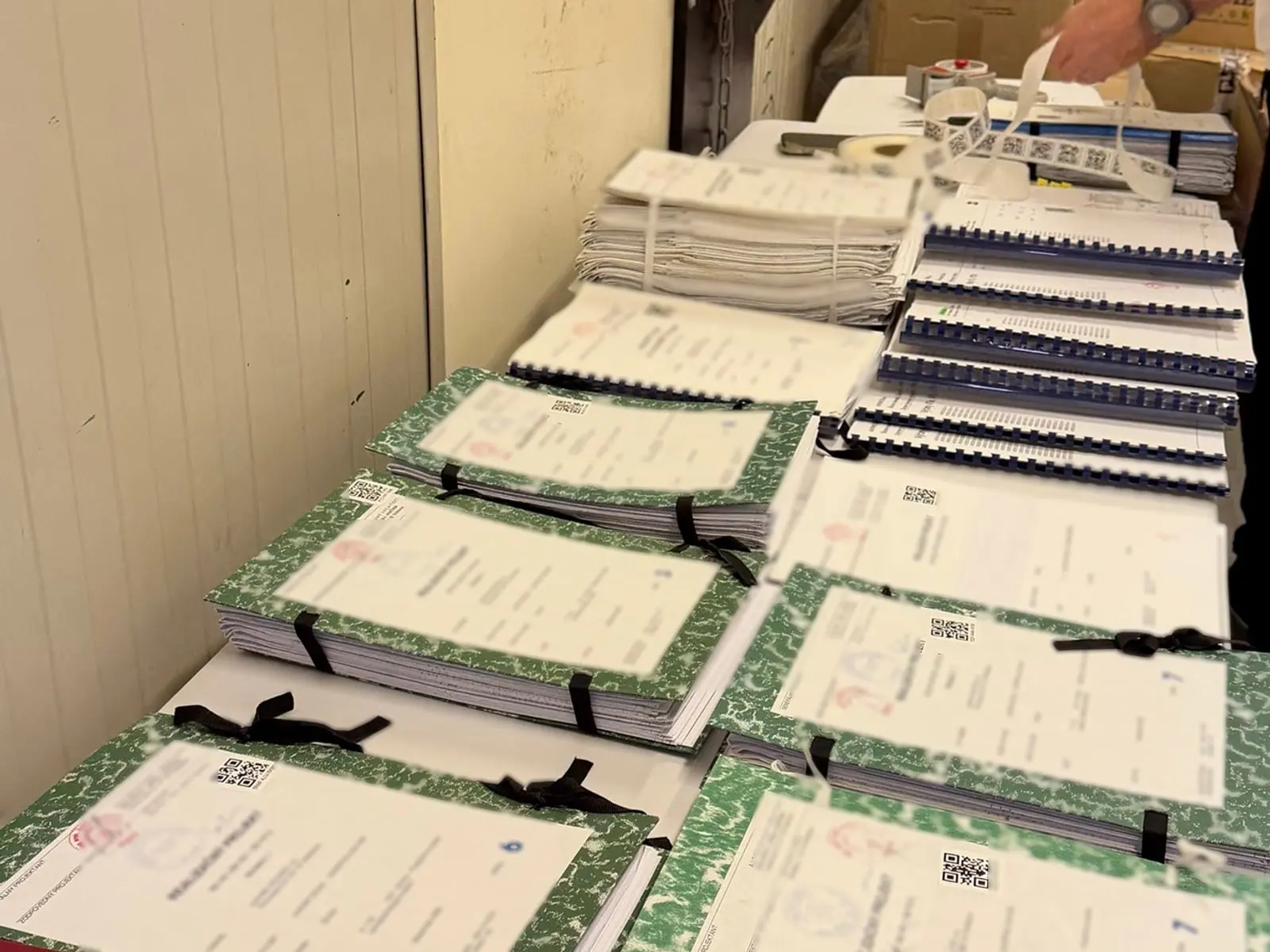
Phase 1 · Cataloguing

Where is it? Do we need it?

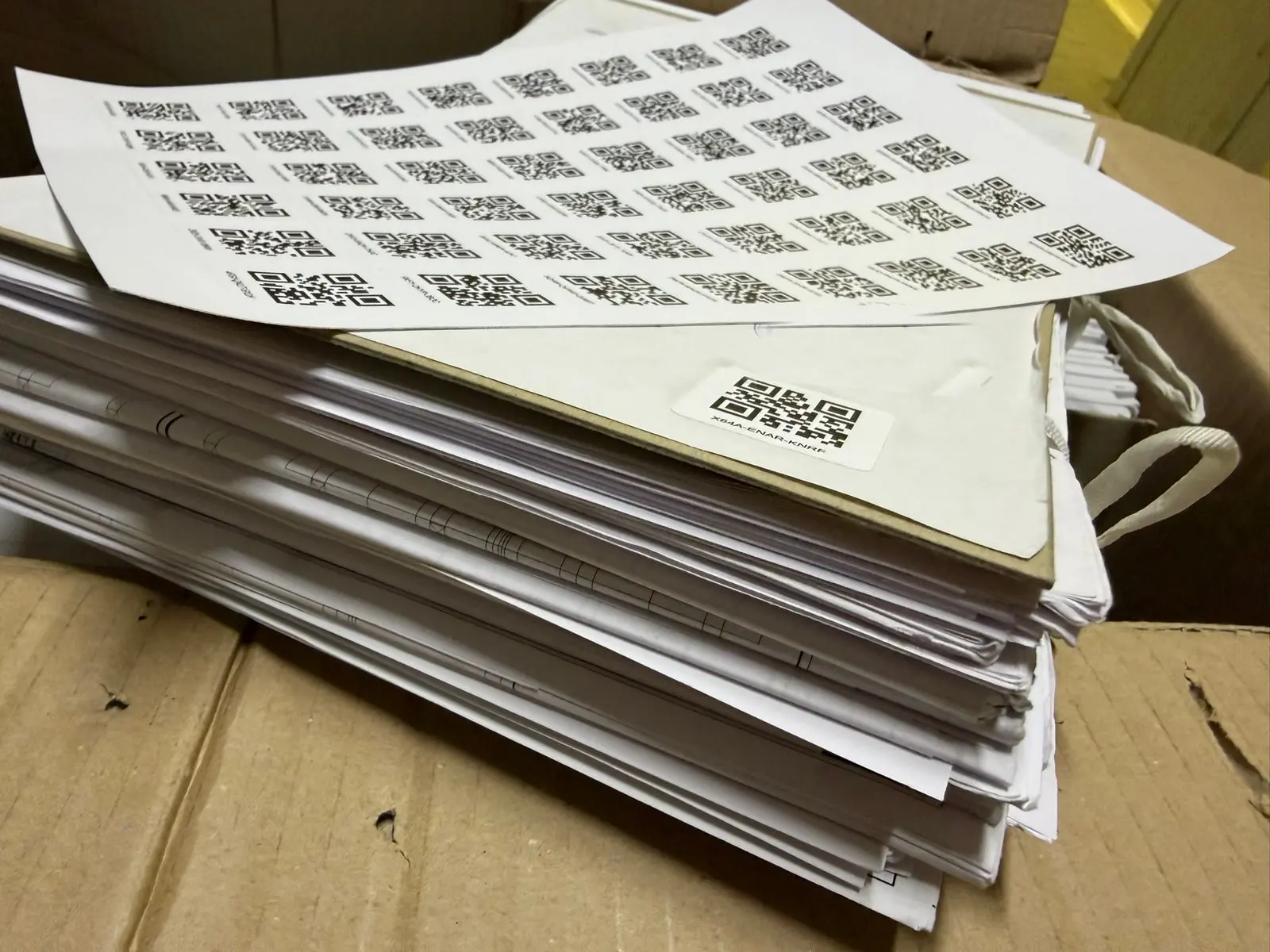
  • Every item gets a QR code (shelf, box, folder, document).
  • The identification pages of the relevant items are photographed and the application reads the data from them: document title, year of issue and more as needed.
  • The recorded items form an online catalogue of the archive: you can search it, sort it further and it shows the way to the physical item.
  • You sort the items, for example: dispose, keep with a retention period the application records, or digitise in phase 2.

Result: You know what you have, where it is and what to do with it next.
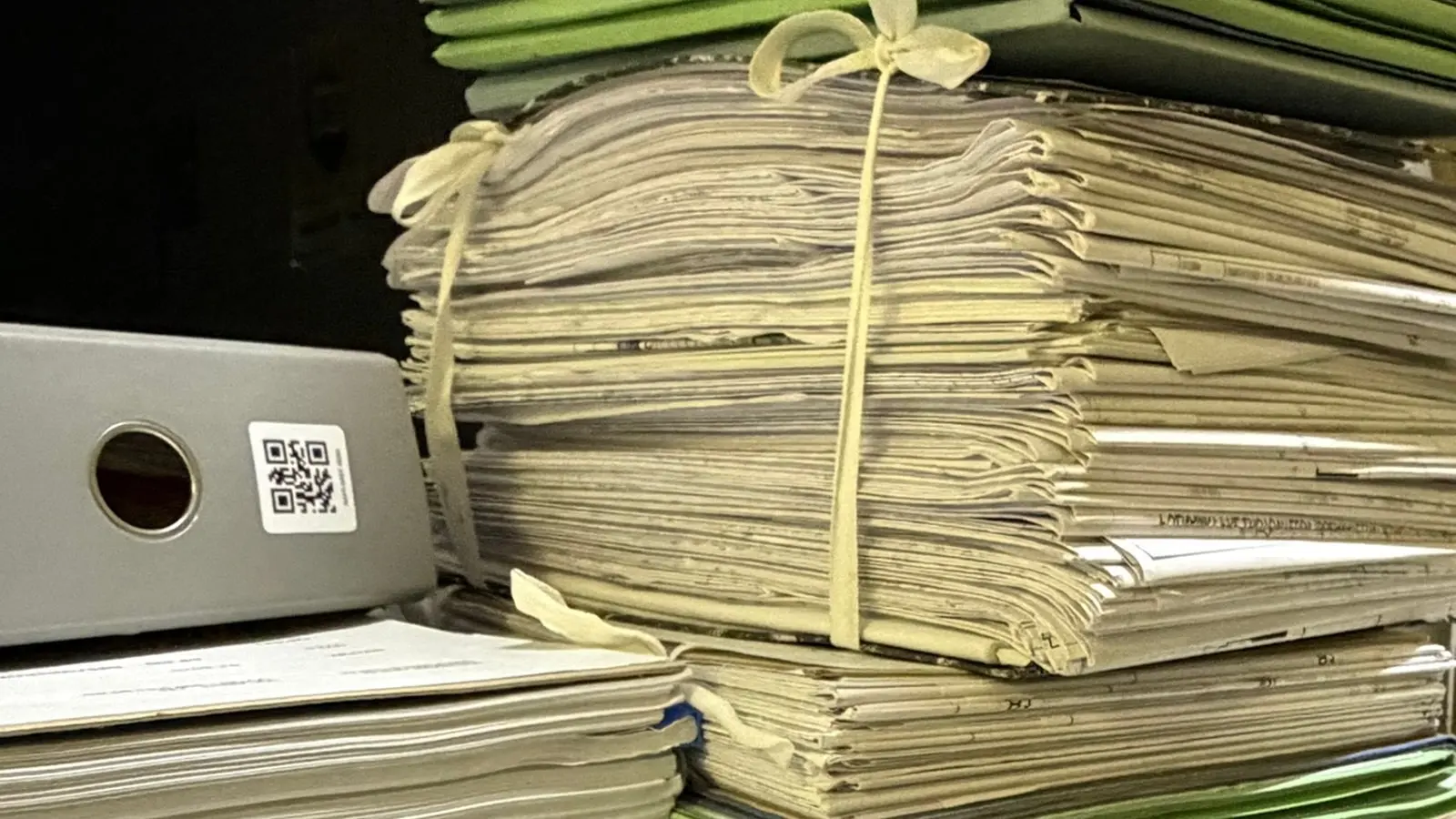
Phase 2 · Digitisation

Scanning the documents you need

  • Builds on the cataloguing: the documents picked in phase 1 are fully digitised by scanning.
  • Only selected documents: what is used or has to be available without a trip to the store.
  • The scan is attached to the record in the catalogue; the original stays where it is.
  • Full-text search in the digitised documents.

Result: The selected documents are available online in the application, with full-text search and further analysis.

Cataloguing workflow

Five steps from the sticker to the search. The clips show how it looks in the application.

  1. Step 01 / 05

    A QR code sticker and a photo

    • You stick a QR code label on the item, whether a box, a binder, a folder or a document.
    • With the phone you photograph the identification page.
  2. Step 02 / 05

    Placing it in the hierarchy

    • On the phone you pick the item type: shelf, box, folder or document.
    • The hierarchy in the application mirrors the store, so a search leads straight to the item you are looking for.
  3. Step 03 / 05

    The application reads the text and proposes the data

    • The application recognises the text in the photo.
    • It proposes what the document is: author, project name, year.
  4. Step 04 / 05

    A person confirms

    • Next to the photo you see the proposed values.
    • You confirm, correct or reject each one.
    • Only then does a verified record exist, with the photo kept alongside it.
  5. Step 05 / 05

    Keyword search

    • A keyword is enough.
    • The application finds it in names, notes and the text of the photos and highlights the match.
    • It shows the path to the item.

Specification

01

What you need

Devices
A phone or tablet on site, a computer with a browser for review and search. Nothing to install.
QR codes
Printed QR codes generated by the application. It recognises them in the photo and links them to the item itself. Some items can also have no code.
02

Key features of the application

Placing in the hierarchy
Shelf, box, folder, document, as they are really stored.
Attachments
Every record has the identification photo and the raw text read from it (OCR). You can attach further photos or other files to an item.
Metadata from cataloguing
From the raw text of the identification photo the application proposes structured data and a person confirms it: document title, year, author and more as the situation requires.
Custom fields and management
Notes, retention periods, your own tags and statuses by your rules, for example your records schedule. Records can be sorted and filtered by them.
Search and analysis
A keyword finds the record in names, notes and the text of the photos. Filters by metadata and custom fields.
Export
At any time, in one package: data, photos, QR codes. The data is yours.
03

Software operation and licence

In the cloud
We run it, you use it in a browser. The data is yours.
On your premises
If your security rules require it.
Licence
By the size of the archive, the scope and the way it is run.

How to start

On your own, or we do it for you.

Software

You catalogue it yourselves. A licence for your team: you label, photograph and confirm on your own.

FAQ

What documents is it meant for?

Physically stored documentation: reports, drawings, contracts and protocols in folders, binders and boxes, on pallets or on shelving, even when unlabelled. The application was built for design and operational documentation of buildings, but it handles any documents, including HR or accounting records.

Is it only for large archives, or is it worth it for a few cabinets in the office too?

It is worth it. The procedure is the same for a pallet of boxes and for two cabinets: an item gets a code, a photo and data. A small archive is recorded in a few hours, and the questions of where things are and what can already be disposed of are the same as in a large one. The licence scales with the size of the archive.

Can you classify items according to our records schedule?

Yes. Retention periods, codes and statuses from your schedule can be assigned to items as custom fields and you can filter by them. The application does not deal with creating or managing records schedules or disposal processes.

Is this statutory records management?

No. Retention periods and codes from your records schedule can be tracked as custom fields; the application does not manage the disposal process.

Let's agree on the first step

We will show you the software or process the first box of your documentation, free and without obligation. Write to us or call.